ios
View on the App Store →Hardware guides
AI Phone Case
Installation, app image casting, and support for the AI phone case.
Download Inkako
Choose the version for your device. Only currently available platforms are shown below.
android
Download for Android →Android
Need help installing the app? Contact the Inkako support team.
1
Install and remove
How to install and remove the AI phone case safely.
Install and remove the AI phone case gently. Correct handling keeps the phone and case fitted correctly and helps prevent cracking, deformation, or other damage.
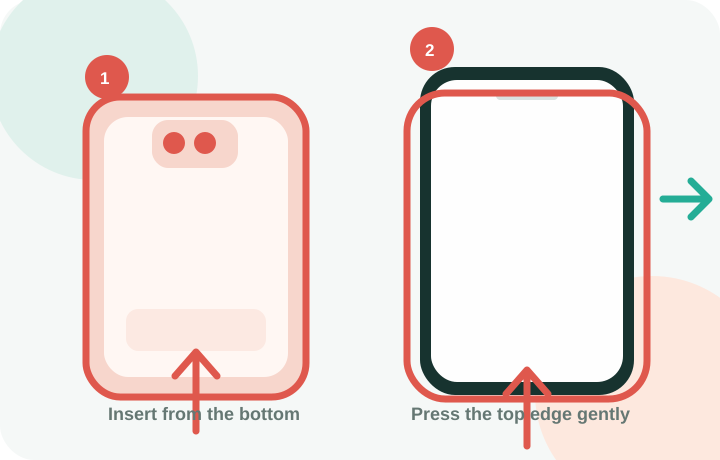
Install the phone case
- Place the bottom of the phone into the bottom of the case first.
- Slowly press the phone into the case from top to bottom.
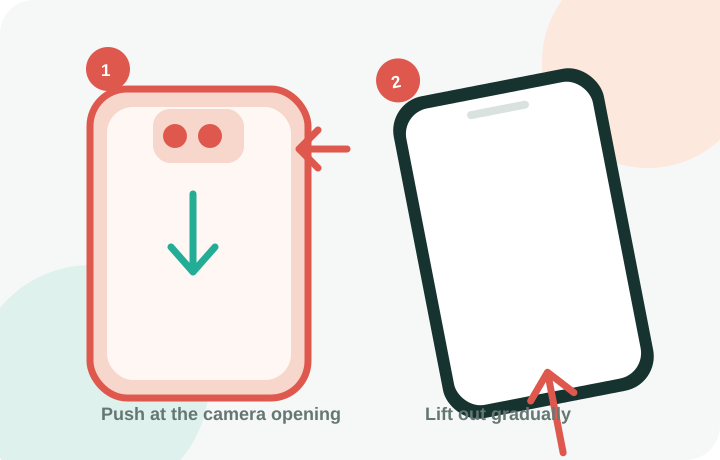
Remove the phone case
- Gently push the phone out from the camera opening of the case.
- Remove the phone gradually from top to bottom.
Important note
Install and remove the case gently and follow the illustrated steps. Do not force the case on or off; doing so can crack or deform it.
2
App use and image casting
Prepare NFC and send images from the Inkako app to the phone case.
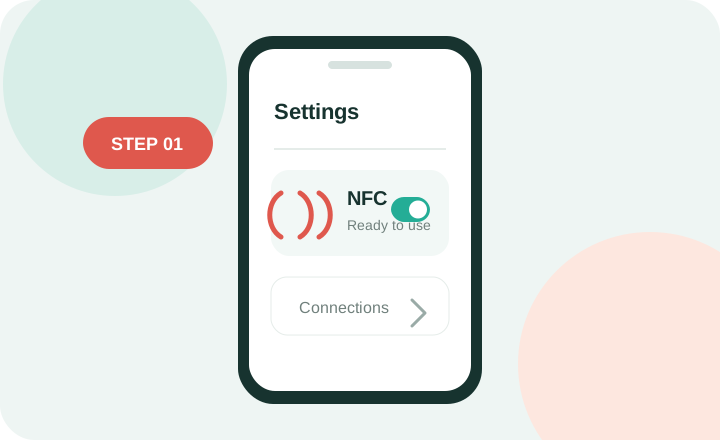
Before using the phone case, install the Inkako app from the website download page and turn on NFC in your phone settings.
Check before you start
- The case is installed correctly and the camera area fits closely.
- Your phone supports NFC and NFC is turned on in system settings.
- The device has been bound in the app.
Content you can cast
You can cast pictures from your photo library, camera, the official gallery, AI image generation, or free creation. See the in-app tutorial for detailed operation.
While casting
Keep the phone closely fitted against the case and do not remove the case during transmission. Avoid repeated, frequent transfers. If the phone becomes slightly warm from NFC use, pause briefly before continuing.
3
Troubleshooting
Answers to NFC, image transfer, temperature and charging questions.
NFC tag cannot be read
Install the case as instructed and make sure the camera area fits correctly. Confirm that your phone supports NFC and that NFC is enabled in system settings.
Do I need to reconnect NFC every time I open the app?
After the first successful pairing, keep NFC on. You can continue using the app the next time you open it.
I cannot send a picture to the phone case
Confirm that the device is bound. Keep the phone and case closely fitted together throughout the transfer and do not remove the case. Avoid repeated, frequent transfers that can trigger phone overheating protection and temporarily disable NFC. Let the phone cool down, then try again or restart the app.
Does the phone case get hot?
The case has no battery and does not generate heat. Frequent use of your phone's NFC chip may make the phone slightly warm; pause use and it will return to normal.
Does the phone case need charging?
No. The e-ink display uses no power for everyday display and consumes only a very small amount of power when refreshing or changing a picture, so it does not affect phone battery life.
Inkako · AI Phone Case